

Instantly Export Your
eBay Orders
to Excel, CSV, or Google Sheets
Export thousands of orders in minutes. Ready for taxes, accounting, or business records.
Why Thousands Choose OrderPro for Order Exports
Save Hours Weekly
Instantly export years of order history. Stop wasting time on manual copy-pasting.
Instant Analytics
Get actionable insights on your spending and top products in seconds.
Effortless Organization
Get clean, standardized data in CSV, Excel, or Google Sheets format, ready for accounting or analysis.
Slash Data Entry Costs
Why pay $30/hour? Automate the process for as little as $9.95/month.
All Platforms, One Place
Export orders seamlessly from Amazon, Walmart, eBay, TEMU, Instacart, Home Depot, and more.
Your Data, Your Control
Order exports are processed locally in your browser. Optional cloud features keep your data encrypted and secure.
Up and Running in 3 Steps
Choose your plan
Start free with your last 30 days of order history.
Install the extension
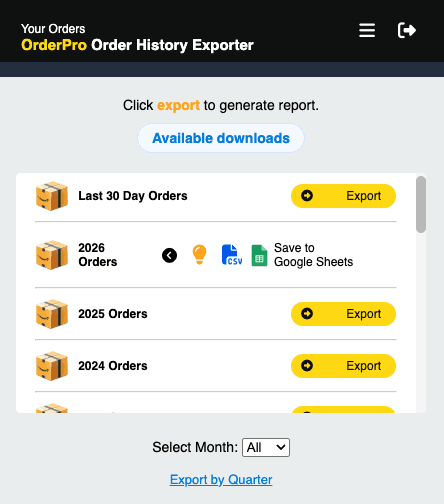
Add our Chrome extension, open it on your platform, and export.
Analyze and download
Get clean data in CSV, Excel, or Google Sheets.
What is Exported?
Your order history is available for download in two separate reports, each tailored to provide distinct insights into your purchase history.
Order Details
Financial
Extras
Works Where You Shop
Export your complete order history from 42 platforms, all in one place.
Amazon, AliExpress, Apple, At Home, B&H Photo, Bass Pro Shops, Best Buy, BJ's Wholesale Club, Cabela's, Chewy, Costco, Dick's Sporting Goods, Doordash, eBay, Faire, Harris Teeter, HEB, Home Depot, IKEA, Instacart, Kohl's, Kroger, Lowes, Macy's, Mariano's, Nordstrom, Nordstrom Rack, Rural King, Sam's Club, Sephora, Shein, Shop app, Staples, Sweetwater, Target, TEMU, Tractor Supply, Uber, Uber Eats, Walmart and Wegmans.










































Don't see your store?
Tell us where you shop and we'll take a look. You can list more than one.
We'll only use your email to follow up on this request.
See Where Your Money Goes
Monthly spending trends, top categories, and product price breakdowns, all generated from your exported orders.
I built OrderPro Analytics after seeing how difficult it was to export and organize purchase data across different platforms. With my background in financial systems and large-scale data, I wanted to create a tool that handles the heavy lifting for you.
Brian Willis
Founder, OrderPro Analytics
Start Exporting Your Orders Now
Choose a plan and export order history with our Chrome extension.
Get Excel or Google Sheets files with up to 15 years of data.
Unlimited exports. Best for ongoing expense tracking, budgeting, or running a business
 Unlimited exports, anytime
- Up to 15 years of history
- Multi account exports
- Bookkeeping-ready CSV, Sheets and Excel
- Auto-categorize 50 items a month
- Unlimited exports across all 6
- Multi account exports per platform
- Up to 15 years of history
- Bookkeeping-ready CSV, Sheets and Excel
- Auto-categorize 50 items a month
- Unlimited exports across clients
- Full auto-categorizer included
- New platforms as they launch
- Priority support
- Custom export formatting on request
Join thousands of shoppers, accountants, and small business owners using OrderPro across 42 stores.
Taxes may apply at checkout.
Frequently Asked Questions
The extension only requests the minimum permissions needed to read order pages on supported retailers (like Amazon or Uber) when you click Export. It does not track your browsing, run in the background, or access pages outside of supported stores. The benefit: you get a one-click export without ever handing over your retailer passwords or connecting a third-party account.
When you're ready for full history, you have three flexible options:
- Pay-as-you-go -- buy a single credit if you just need one export (great for tax season or a one-time pull).
- Pay Once -- 3 months of access with no renewal.
- Subscribe -- unlimited exports for ongoing expense tracking or business use.
- Tax prep & deductions -- pull a full year of purchases and categorize business or deductible expenses.
- Insurance claims -- after theft, fire, or damage, quickly produce a documented list of items you purchased (with dates, prices, and order links) to support a claim.
- Building a home or business inventory -- turn your order history into a running inventory of items you own (electronics, tools, furniture, supplies) without manually entering each one.
- Client billing & reimbursements -- export a clean itemized report for invoicing or expense reports.
- Household & personal budgeting -- see your real spending across Amazon, Uber, grocery delivery, and more in one place.
- Small business bookkeeping -- keep organized purchase records for accounting software or your accountant.
- Resellers & cost-of-goods tracking -- track what you paid for items you resell.
- Go to riders.uber.com/trips
- Open the OrderPro extension
- Click on Export Period
- Install our official Chrome extension
- Visit the Amazon website and sign-in
- Open the extension
- Click on the Export option
Checkout out our walkthrough video guide on how to import a CSV
- Check your Amazon login status by visiting Your Orders and viewing the details of a digital purchase. This verifies your account and should show the product information.
- After verifying, open the extension, click Clear Cache, and then re-export your orders. This ensures you have the latest data synced up.
- Product No Longer Exists
- If the purchased item is no longer available on Amazon, the product category data may not be accessible.
- Amazon Sign-in Required
- Verify your Amazon login status by checking Your Orders and viewing order details of a purchase.
- One credit = One export
- Each time you export your order history from Amazon, Uber, or other supported platforms, you use one credit.
- Credits are purchased individually
- With pay-as-you-go, you buy credits as needed for each export.
- Credits expire after 12 months
- Once purchased, credits remain available until you use them for 12 months.
- No monthly limits
- Use your credits whenever you need them, no monthly restrictions.
- Purchase additional credits
- Buy more credits anytime you need additional exports.
- Order Data Report
- The first save file window will pop up asking where to save the order data report.
- Product Data Report
- After exporting the order data report, the second save file window will pop up asking where to save the product data report.
Make sure to save both files when prompted.
- Order Data
- Product Data
You can switch between these two sheets using the tabs at the bottom of the Google Sheet.
- Close Chrome completely
- Reopen Chrome and navigate back to the extension
- If the issue persists, try clicking Clear Cache in the extension and ensure you're signed in.