
Loading...
Loading...


Quick answer: Amazon's Your Orders page lists your orders but never adds them up. Export them with the OrderPro Analytics Chrome extension and you get a CSV, Excel, or Google Sheets file plus charts of your top items, biggest orders, price ranges, and monthly spend. Your last 30 days export free.
Where does your Amazon money go?
Export your orders and see your spending at a glance.
OrderPro never asks for your Amazon password.
Want to look first? Open the analytics demo with sample orders.
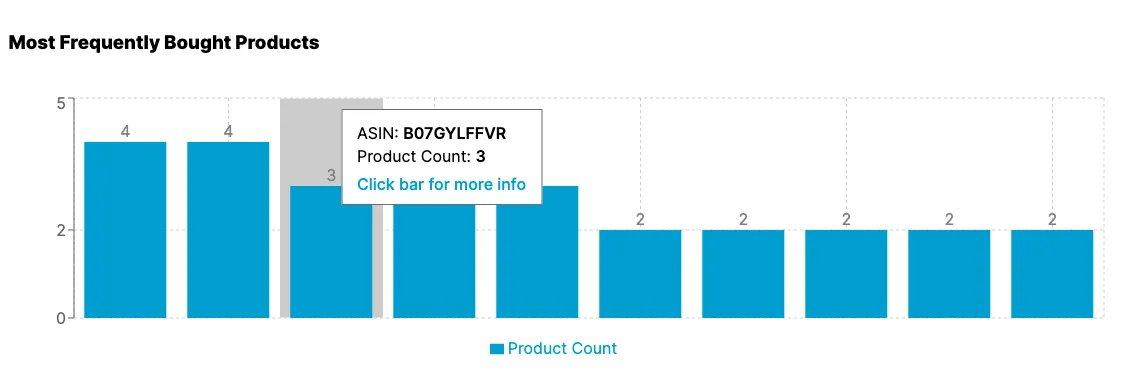
See what you reorder most and what it adds up to.
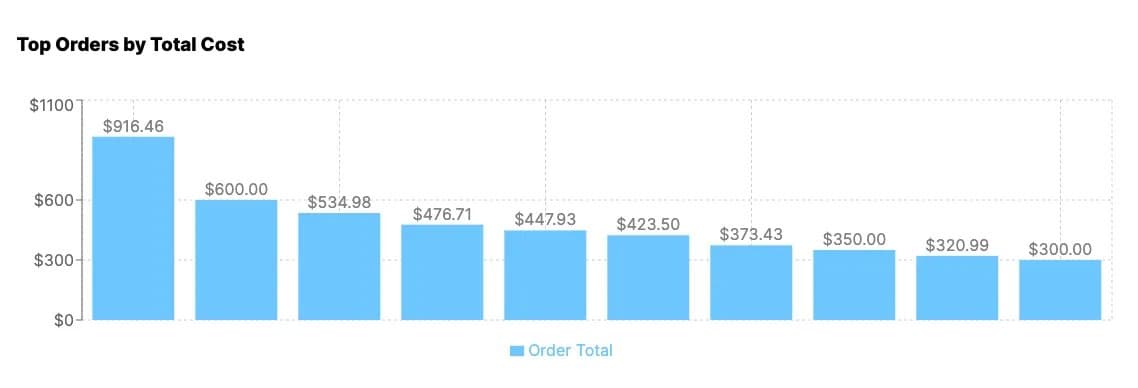
Spot the big-ticket purchases that moved your monthly total.
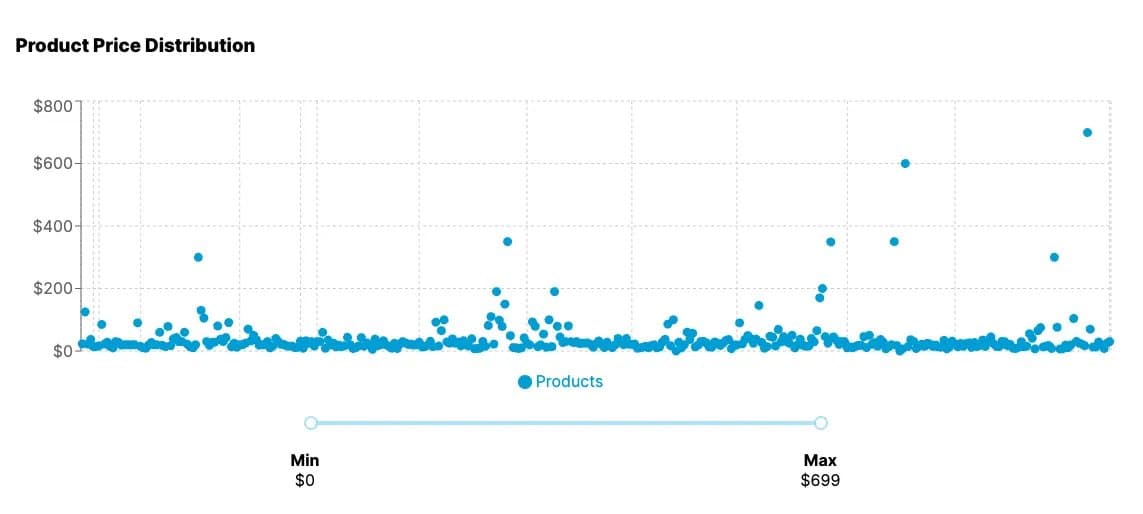
Find out whether small buys or a few large ones drive your spending.
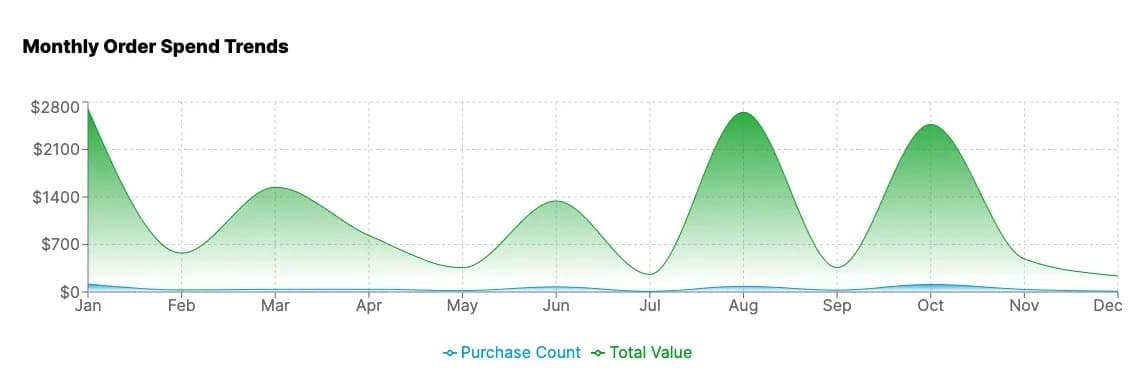
See your busiest months so next year's budget is realistic.
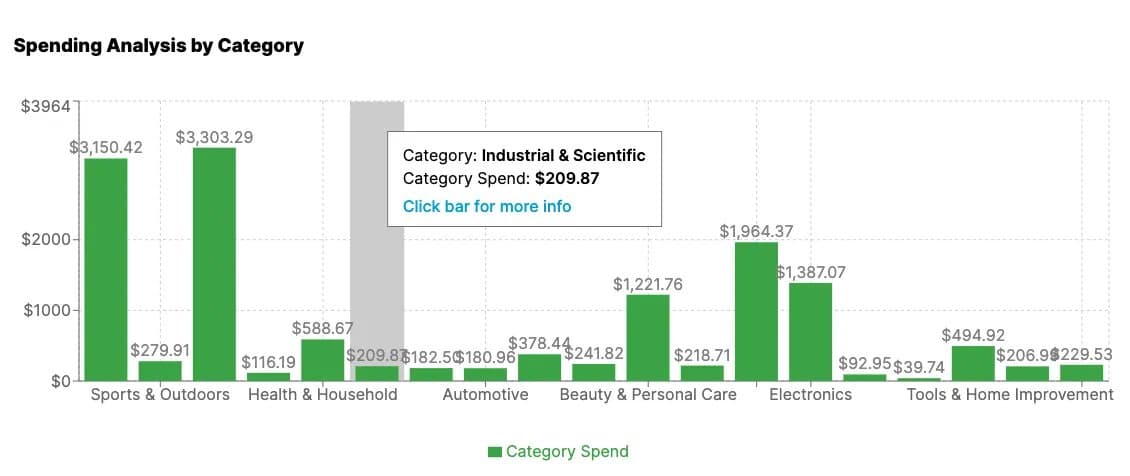
Sort your purchases into categories with the Purchase Categorizer and see how much goes to groceries, household, electronics, and more.
Need the step-by-step for the export itself? See how to download your Amazon order history.
Amazon's Your Orders page lists orders but doesn't total them. Export your orders with the OrderPro Analytics Chrome extension and you get a spreadsheet you can total by month, plus charts of your top items, biggest orders, and monthly spend. Your last 30 days export free.
Yes. Once your purchases are sorted into categories with the Purchase Categorizer, the charts break your spending down by category and subcategory.
Yes. Export to CSV, Excel, or Google Sheets, then sort, filter, or build a pivot table by month or item.
No. You sign in to Amazon in your own browser, and the extension reads your orders from there. OrderPro never asks for your Amazon password.
Budgets, taxes, or just curiosity: it starts with one export.
Export my Amazon ordersFree for your last 30 days of orders.